Exchange
Content322
■Exchange
The Exchange lets players buy and sell items with each other.
Medals are used for trading.
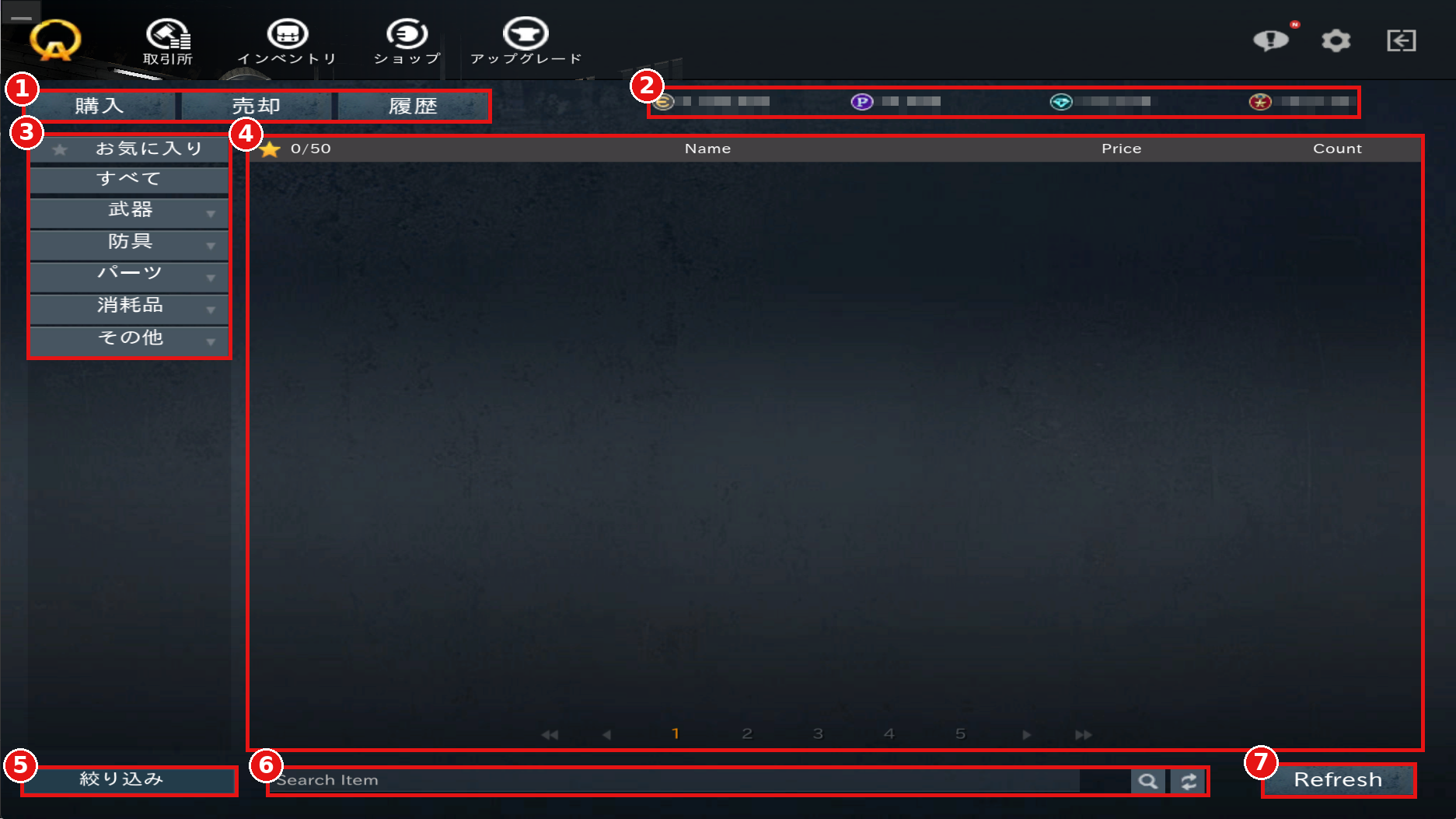
①Buy / Sell / History
Switch between the Buy screen, the Sell (listing management) screen, and your trade history.
②Currency
Displays the currency you currently have.
③Categories
Filter the types of items displayed. "Favorites" (お気に入り) shows only items you have added to your favorites.
④Listings
Displays items listed by other players, along with price and quantity.
⑤Filter
Narrow down items with detailed conditions.
⑥Search
Search by item name. The button on the right resets your search.
⑦Refresh
Update the listings to the latest state.
■Buying Items
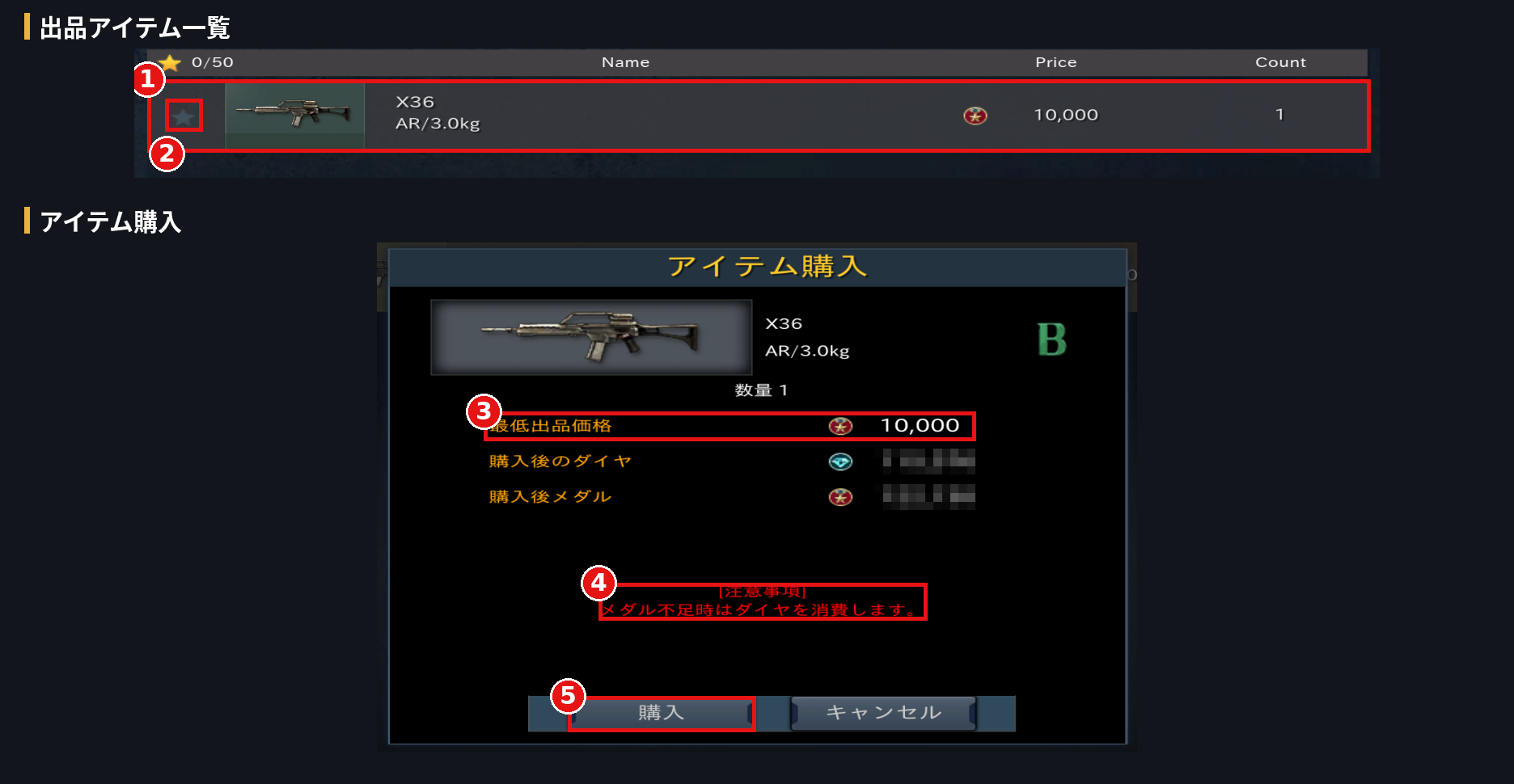
①Listed Item
Double-click the item you want to buy to open the purchase screen.
②Favorites
Click the ☆ to add the item to your favorites (up to 50).
③Purchase Price
Displays the item's purchase price.
④Notes
If you do not have enough Medals, Diamonds will be used.
⑤Buy
Confirm the details and purchase the item.
Purchased items can be received in your Mailbox.
■Listing Items and Collecting Sales
The "Sell" (売却) tab is used to list items and collect sales proceeds.
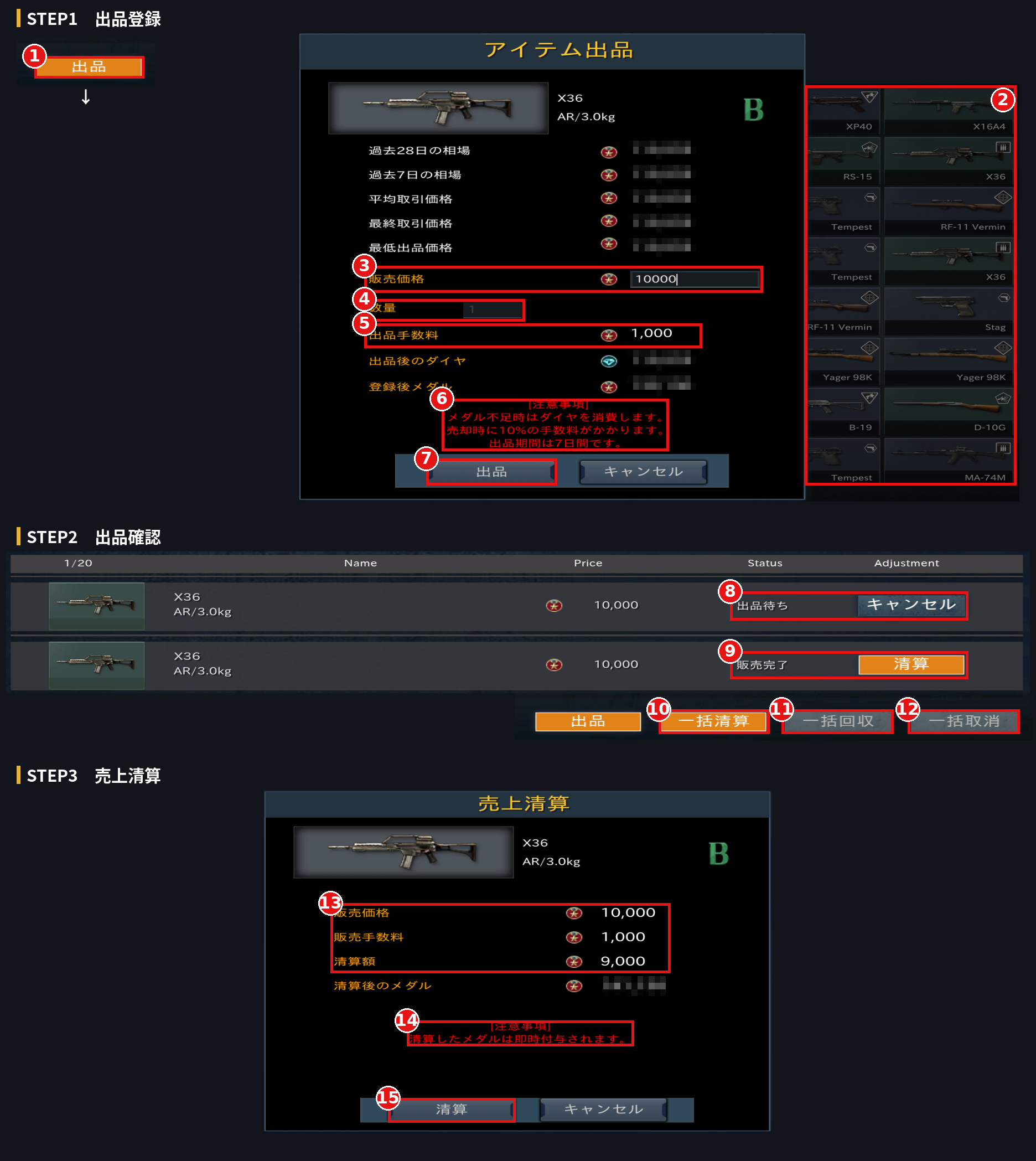
【STEP1 Create a Listing】
①List (出品)
Open the item listing screen.
②Item to List
Select the item you want to list from your items.
③Sale Price
Enter the sale price.
④Quantity
The quantity to list.
⑤Listing Fee
Displays the fee for listing.
⑥Notes
If you do not have enough Medals, Diamonds will be used.
A 10% fee is charged on the sale price when the item sells.
The listing period is 7 days.
⑦List
Confirm the details and list the item.
【STEP2 Check Your Listings】
⑧Awaiting Sale (出品待ち)
Listed items are shown as "Awaiting Sale." Click "Cancel" (キャンセル) to cancel the listing.
You can have up to 20 listings at a time.
⑨Sold (販売完了)
When a listed item is purchased, it is shown as "Sold." Click "Collect" (清算) to open the sales collection screen.
⑩Collect All (一括清算)
Collect the proceeds from all sold items at once.
⑪Retrieve All (一括回収)
Retrieve all items whose listing period has ended at once.
⑫Cancel All (一括取消)
Cancel all active listings at once.
【STEP3 Collect Sales】
⑬Collection Details
Displays the sale price, sales fee, and amount to be collected.
⑭Notes
Collected Medals are granted immediately.
⑮Collect
Confirm the details and collect your proceeds.
The Exchange lets players buy and sell items with each other.
Medals are used for trading.
①Buy / Sell / History
Switch between the Buy screen, the Sell (listing management) screen, and your trade history.
②Currency
Displays the currency you currently have.
③Categories
Filter the types of items displayed. "Favorites" (お気に入り) shows only items you have added to your favorites.
④Listings
Displays items listed by other players, along with price and quantity.
⑤Filter
Narrow down items with detailed conditions.
⑥Search
Search by item name. The button on the right resets your search.
⑦Refresh
Update the listings to the latest state.
■Buying Items
①Listed Item
Double-click the item you want to buy to open the purchase screen.
②Favorites
Click the ☆ to add the item to your favorites (up to 50).
③Purchase Price
Displays the item's purchase price.
④Notes
If you do not have enough Medals, Diamonds will be used.
⑤Buy
Confirm the details and purchase the item.
Purchased items can be received in your Mailbox.
■Listing Items and Collecting Sales
The "Sell" (売却) tab is used to list items and collect sales proceeds.
【STEP1 Create a Listing】
①List (出品)
Open the item listing screen.
②Item to List
Select the item you want to list from your items.
③Sale Price
Enter the sale price.
④Quantity
The quantity to list.
⑤Listing Fee
Displays the fee for listing.
⑥Notes
If you do not have enough Medals, Diamonds will be used.
A 10% fee is charged on the sale price when the item sells.
The listing period is 7 days.
⑦List
Confirm the details and list the item.
【STEP2 Check Your Listings】
⑧Awaiting Sale (出品待ち)
Listed items are shown as "Awaiting Sale." Click "Cancel" (キャンセル) to cancel the listing.
You can have up to 20 listings at a time.
⑨Sold (販売完了)
When a listed item is purchased, it is shown as "Sold." Click "Collect" (清算) to open the sales collection screen.
⑩Collect All (一括清算)
Collect the proceeds from all sold items at once.
⑪Retrieve All (一括回収)
Retrieve all items whose listing period has ended at once.
⑫Cancel All (一括取消)
Cancel all active listings at once.
【STEP3 Collect Sales】
⑬Collection Details
Displays the sale price, sales fee, and amount to be collected.
⑭Notes
Collected Medals are granted immediately.
⑮Collect
Confirm the details and collect your proceeds.